Guide for Writing Documentation
TRAFOLO has 4 types of documentation:
- Internal Documentation - only for us
- Interface Reference Manual - basically, it explains how each setting in TR
- Users Guide - explains how to do specific things
- Templates - just some examples as demonstrations for new users what they can get
We will include all our knowledge about writing documentation here - tools, workflow, useful tips, etc. The purpose of this document is to act as a reference.
Tips
- Use Grammarly (install it as software on your computer). Although different grammar-check tools are available, everyone should use the same one. Otherwise, we will see different suggestions all the time.
- Confluence is our main writing tool. It is professional, used by top companies, very powerful, and allows us to provide quick feedback to each other. Let's invest in learning it.
- There will be two types of documents - internal documentation for our own use and external documentation for our users.
- We will keep a practice that all documents should be reviewed (including this document). If you have a comment or suggestion, then let the writer know.
- Once you start a new template or document, it will be created as a Draft and not visible to others. Click Publish to make it available for others.

After finishing making changes, click Update.
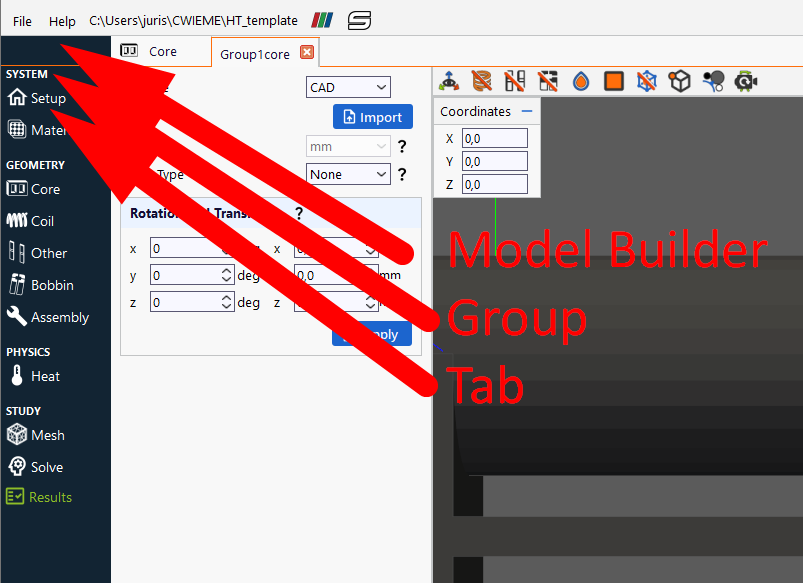
- Use interface namings as follows:
Style
-
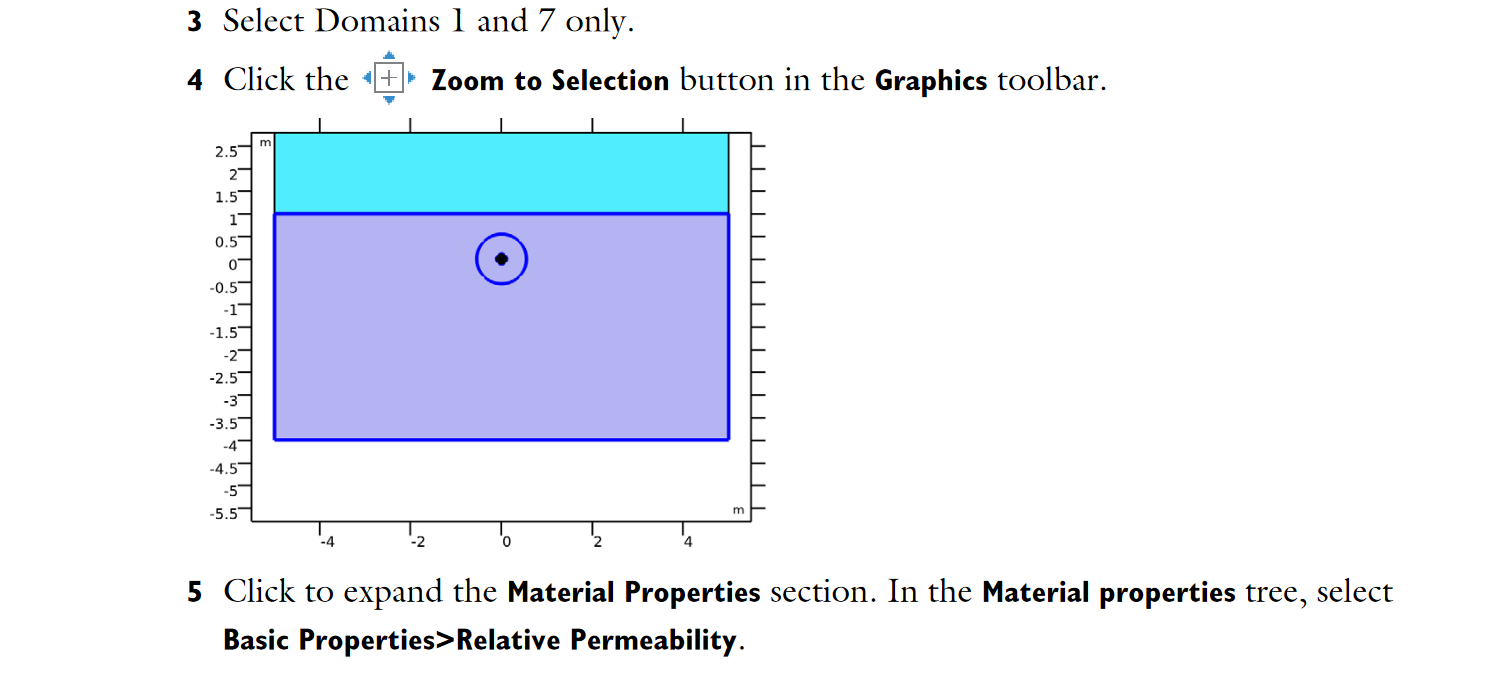
Whenever in doubt how to better structure the document or how to style it, follow COMSOL
-
Templates → https://www.comsol.com/models
- Interface Reference Manual → https://doc.comsol.com/5.5/doc/com.comsol.help.comsol/COMSOL_ReferenceManual.pdf
- Users Guide → https://blogs.ethz.ch/ps_comsol/files/2020/05/COMSOLMultiphysicsUsersGuide.pdf
- Use numbering list:
Examples
https://www.loom.com/share/cac7289587a047e1b365d26cad6021c2?sid=2bccae6f-4e8a-4bf8-b071-409f0090e286https://www.loom.com/share/ab6a5e6138b74b41be0d60746857de4a?sid=80228535-fac7-440a-96d9-f01fcd7031fehttps://www.loom.com/share/17d6eaaaa08641d1a0d31b09544b675e
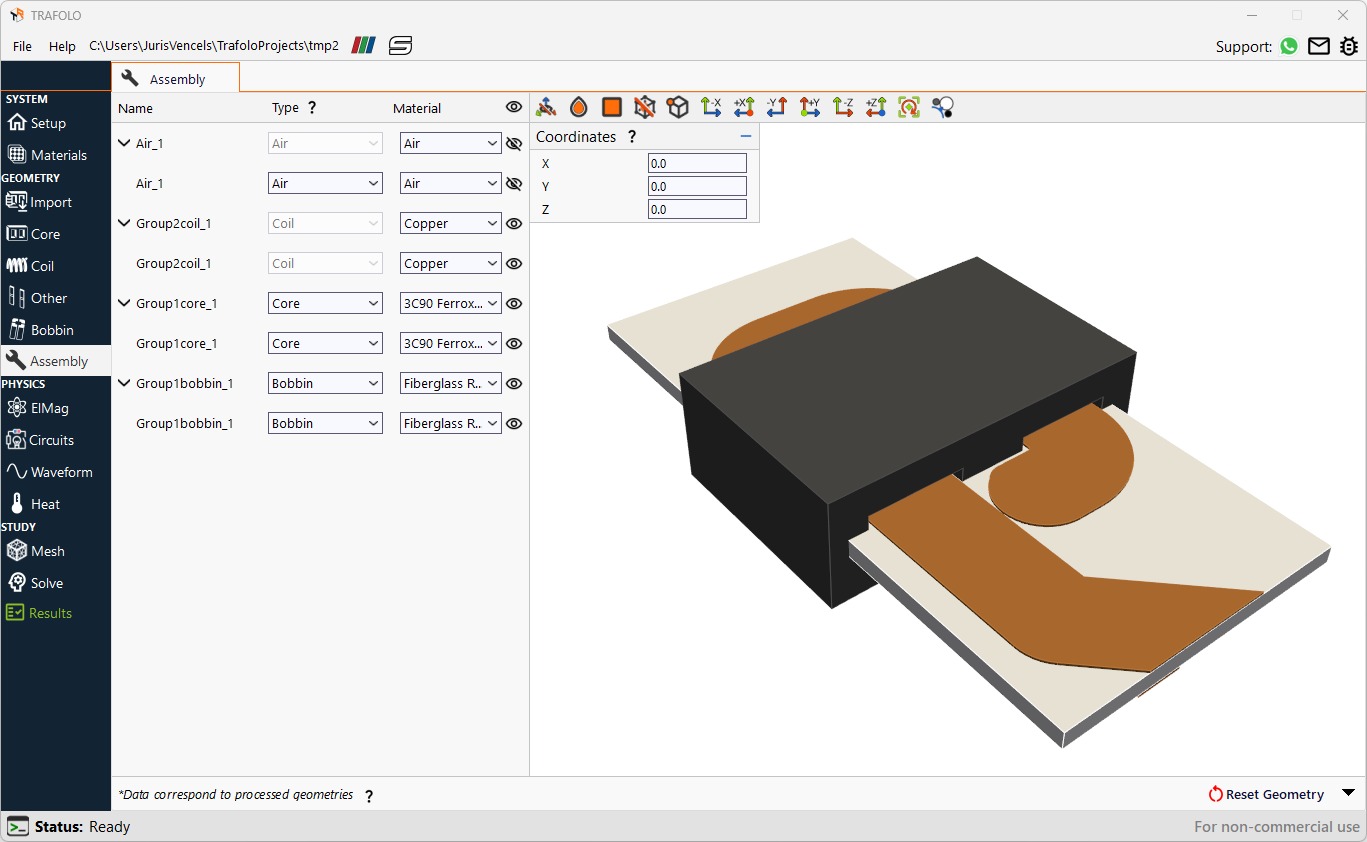
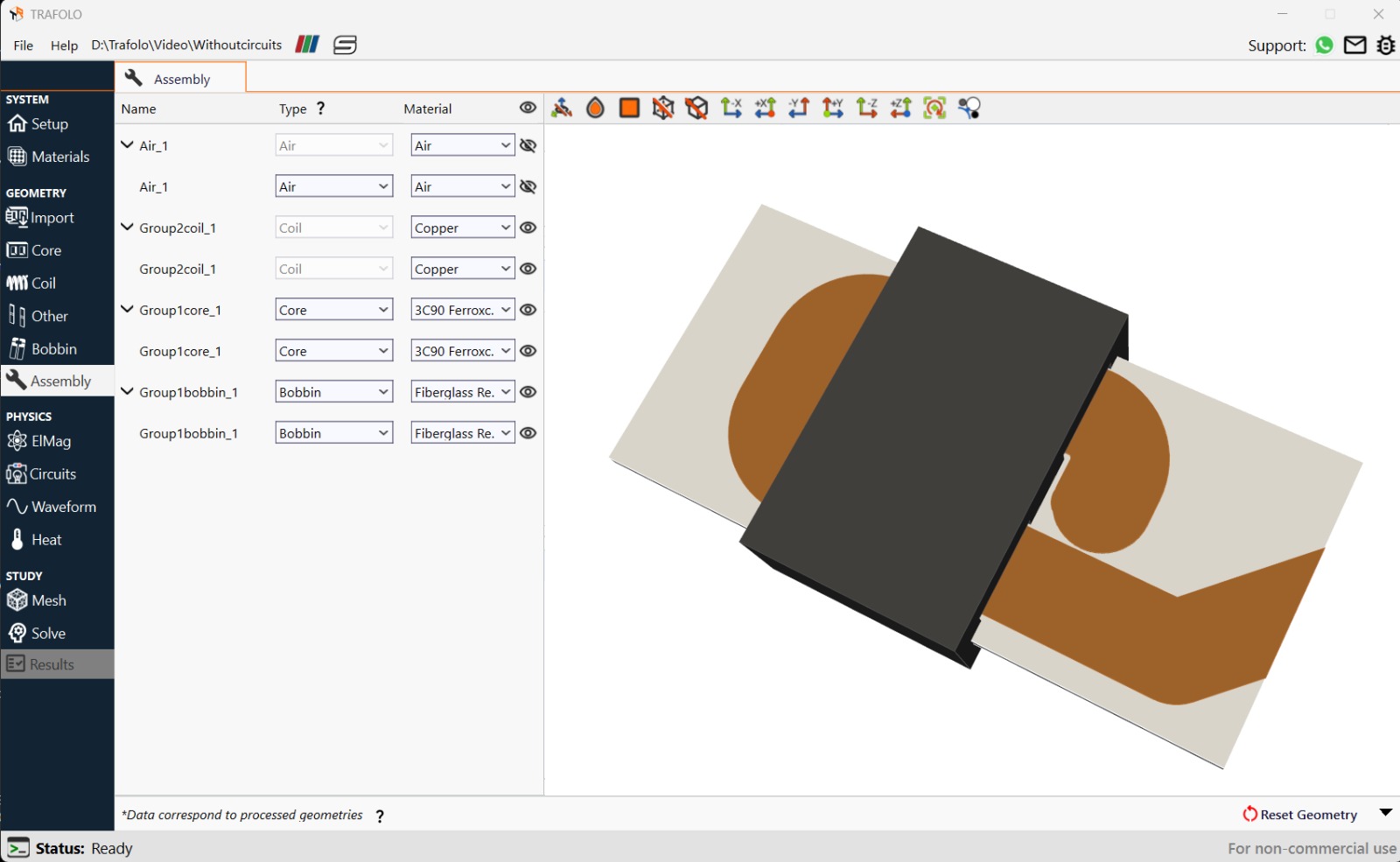
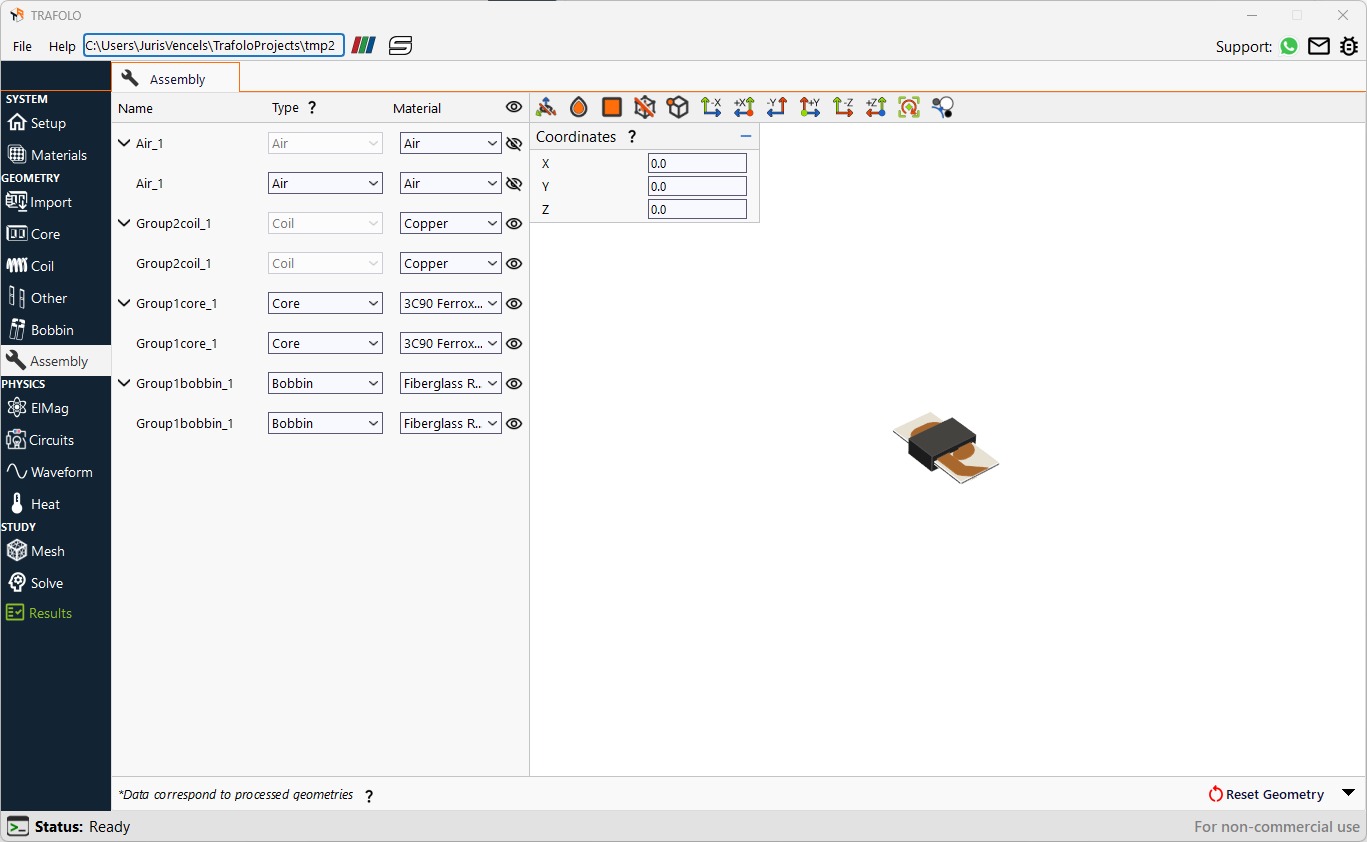
How to position objects in preview
We want to provide viewers with as much information about the geometry as possible.
External Documentation Workflow
- We are writing for magnetics design engineers. They are smart and busy (in general).
- With the help of documentation, they should be able to complete the case entirely without guessing and missing any important details.
- Skip long texts and intros. It should be clear and make sense.
- Use default formatting.
- Comsol, Simscale documentations are good, follow by example.
Confluence (CF)
- Here, we write and keep textual drafts for our documentation. From now on, we will avoid using other tools to draft and share documentation.
- Add pictures for reference. If a picture needs minor changes, there is no need to update it; just leave a comment with the necessary changes explained. Those changes will be applied once the document is copied to WordPress.
WordPress (WP)
- Once the textual draft is complete, we copy it from CF to WP. Styling should be fine.
- Pictures cannot be copied from CF; instead, they must be manually added as pictures into WP (in this case, they are automatically loaded into AWS for faster loading to our readers).
- Once the picture is imported, change or choose settings as follows:
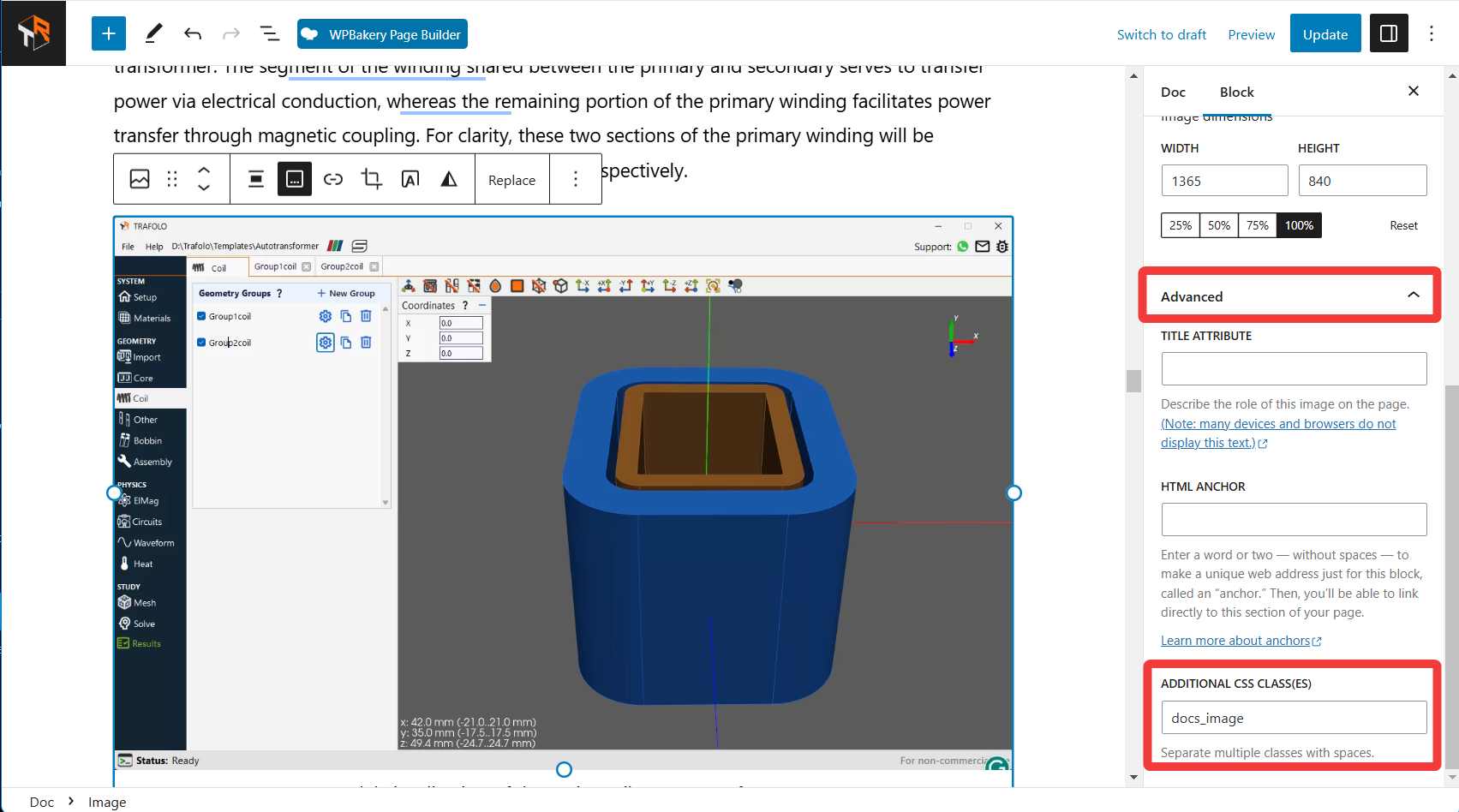
To add CSS
- Select the image and go to Advanced.
- Type docs_image in ADDITIONAL CSS CLASS(ES).
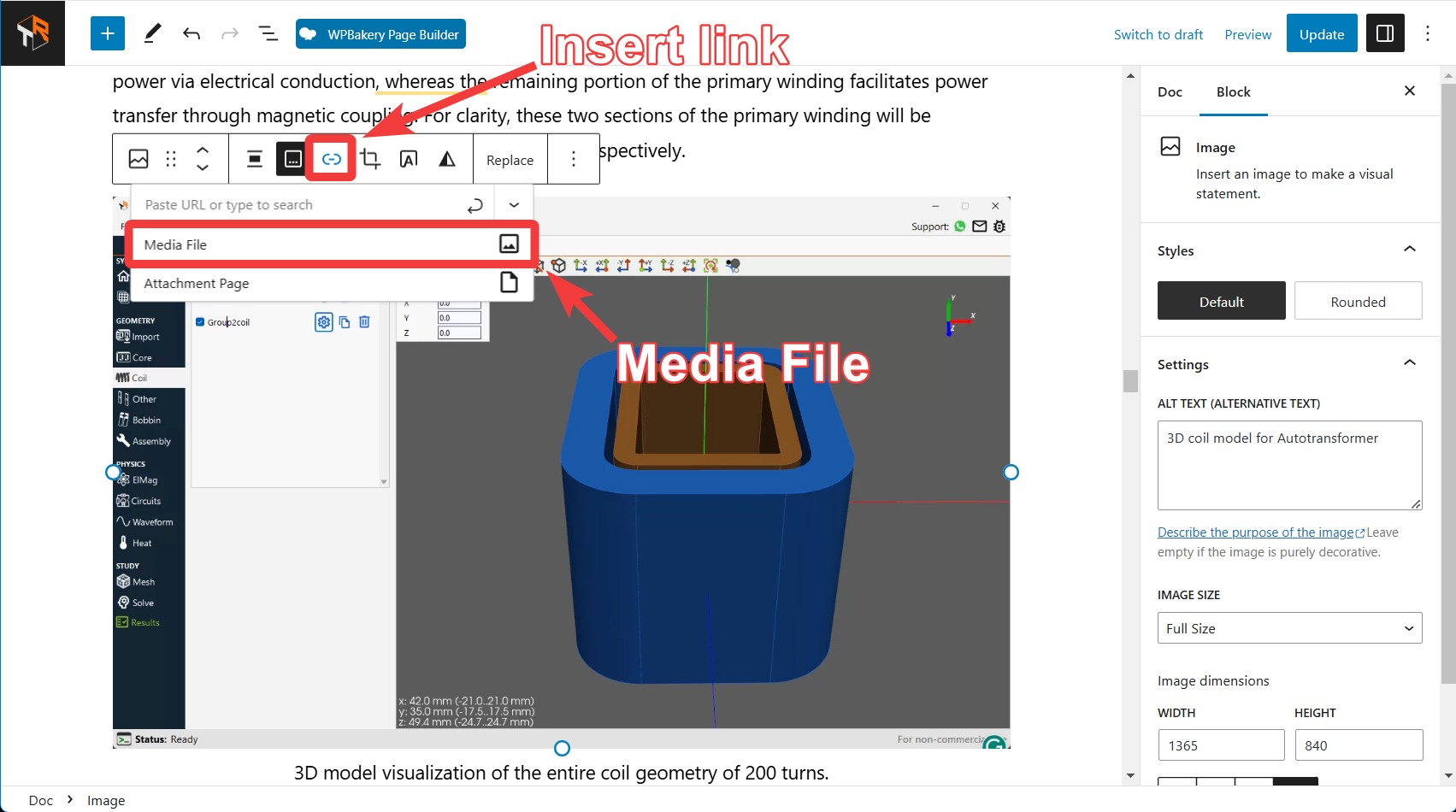
To add a Media file link to image
- Select the image.
- Click on the Insert link andselectthe Media File .
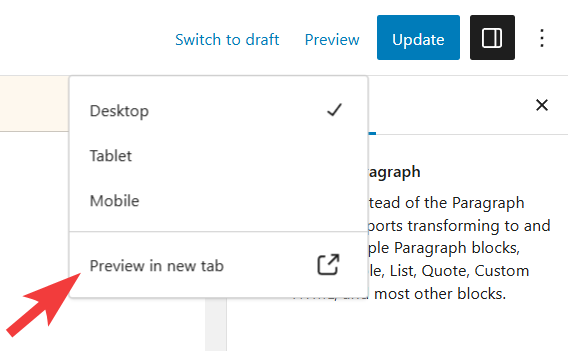
- After editing pictures, Preview they are sized and opening properly.
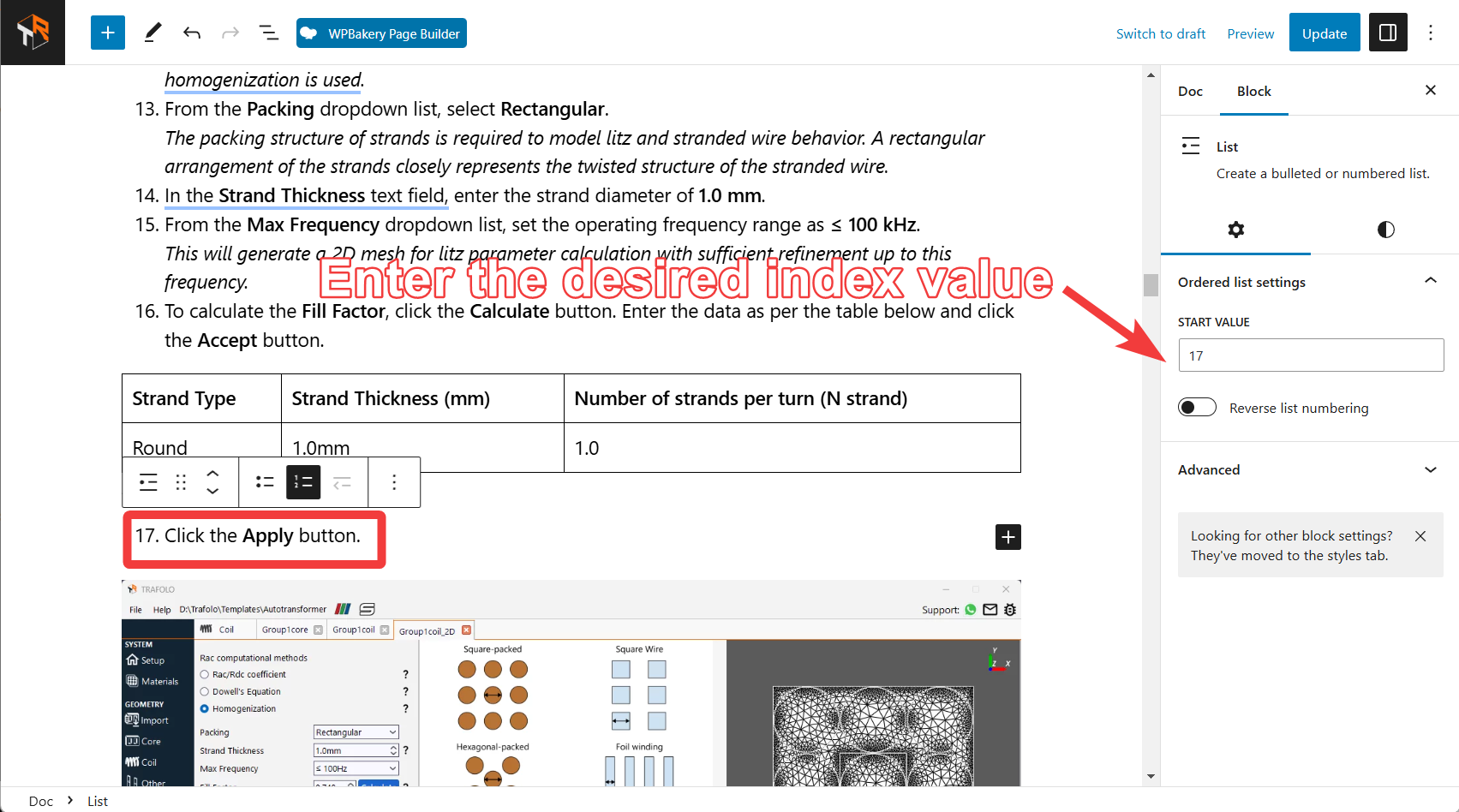
Breaking lists in WordPress
- Whenever any content is inserted in the middle of a list, the numbering restarts from the beginning after the content.
- To resolve this, select the list following the inserted content and set the desired list number in START VALUE, available on the right side of the WordPress tab.
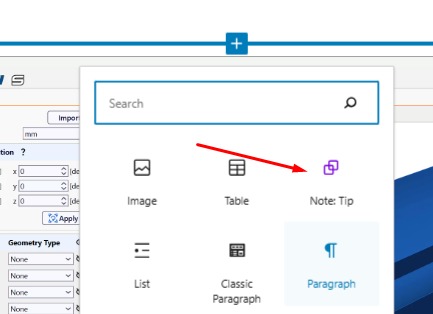
How to add notes in WordPress
- Select Note: Tip.
- Click on Convert to regular blocks.
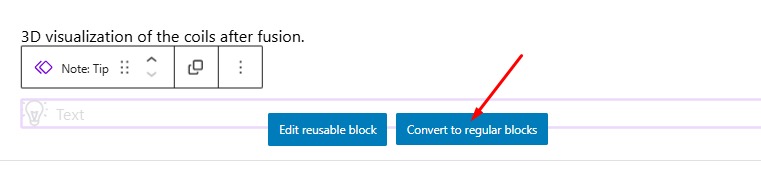
- Type the text that needs to be shown as a note in WordPress.
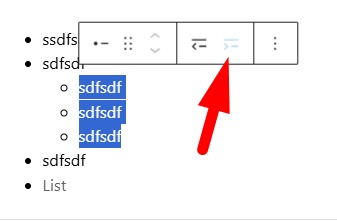
How to add a sub-list to the main list
- Write the main list.
- Select the points that need to be made sub list and click on the option as shown in the figure below.
Taking Screenshots
- Keep pictures with a clear filename; think of structure to keep them organized.
- Use tools that allow taking pictures of the entire window or making clipping, for example, a Snipping tool. We use
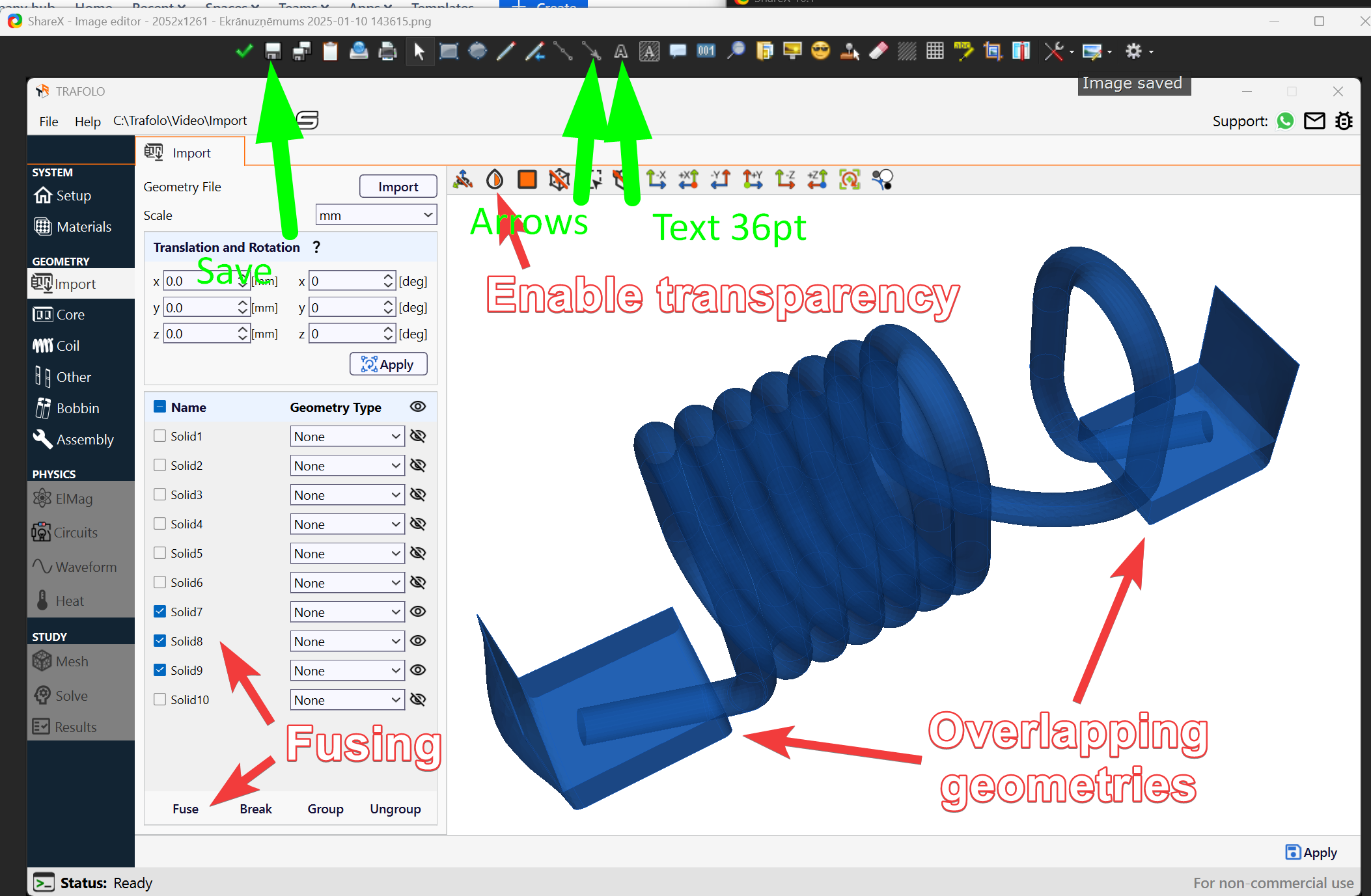
- Pictures should be clear and make sense. Use arrows and other tools to point readers' attention and help to get the simulation up and running.
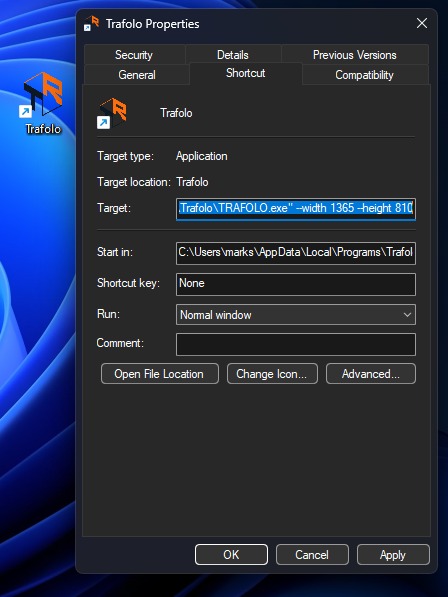
- Keep picture size constant:
1) Navigate to your Desktop and find the TRAFOLO icon. Right-click on the icon and select "Show more options". Click "Create shortcut"
2) Rename the shortcut like "Trafolo_fixedSize". Right-click on it and select "Properties".
3) On the "Shortcut" tab after the file path in the "Target" field, paste the following text: --width 1365 --height 810
4) Add double quotes (") before and after the file path.
The final result should be like this:
"C:\Users\%USERNAME%\AppData\Local\Programs\Trafolo\TRAFOLO.exe" --width 1365 --height 810
5) Click "Ok"
Adding CAD, waveform, and other files
- If the template requires a CAD file, waveform, or other file, we should provide it.
- Prepare those files or lists for every template or document that needs such a file. We will place it on our Cloud and provide the link that will be inserted into the documentation.
Inserting circuit schemes
Make a circuit at https://www.circuit-diagram.org/editor/
Example: circuitExmaple.pptx
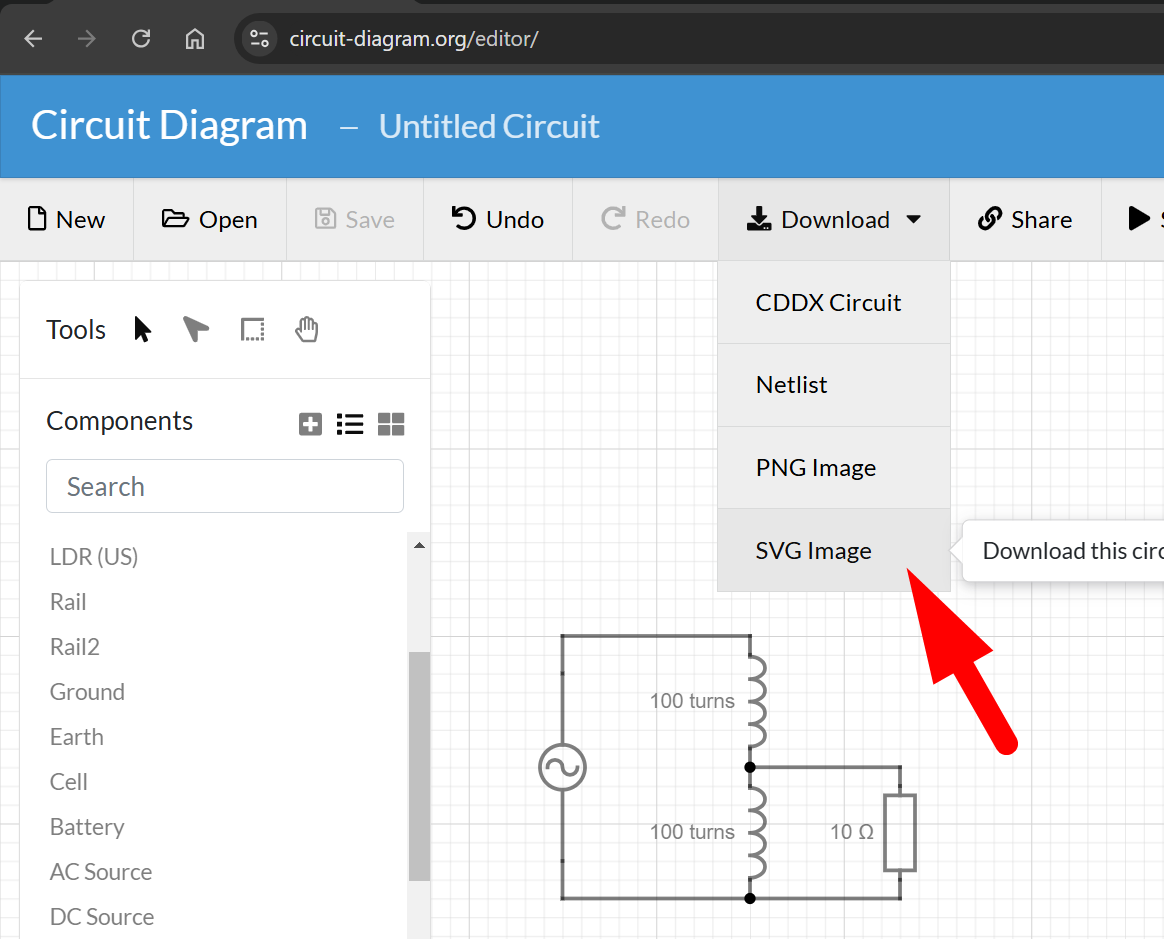
Download as an SVG (vector) image.
Copy-paste it into PowerPoint.
Make it fit into a slide.
Add the necessary labels (text).
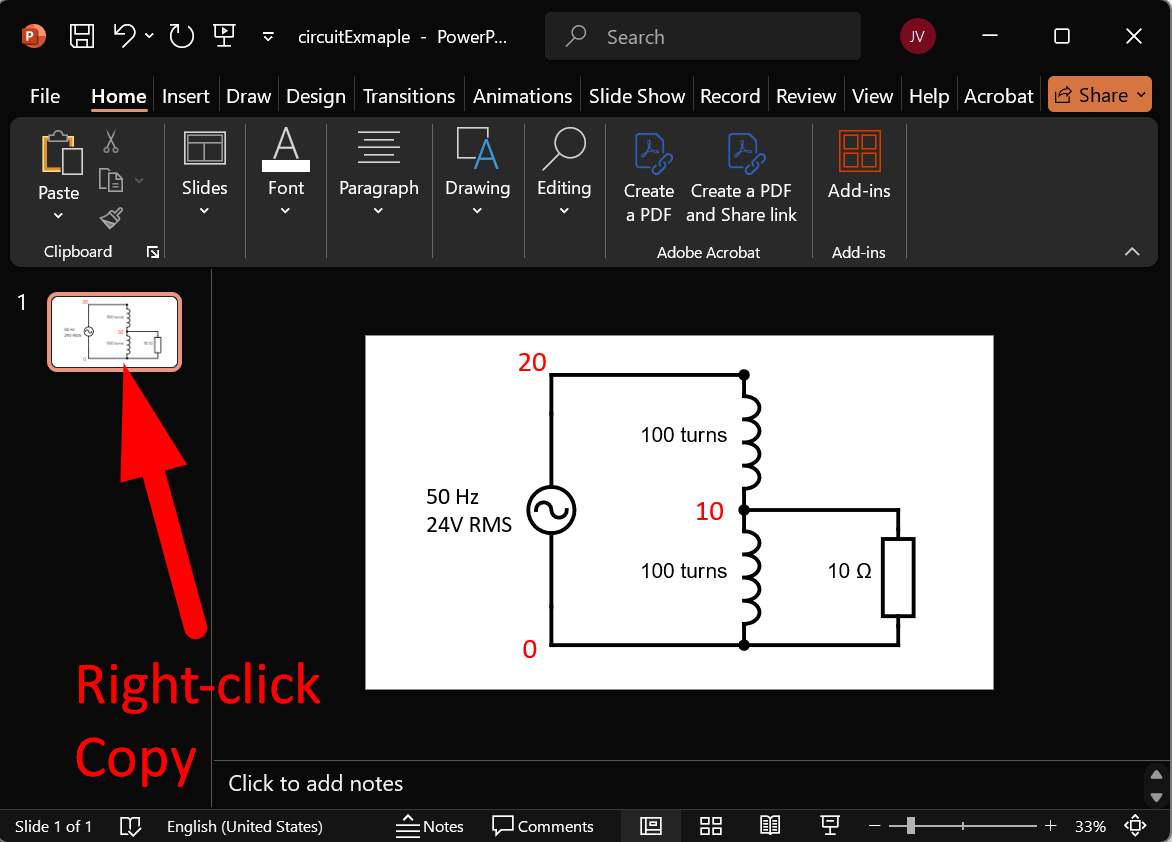
Copy the slide, paste it into Confluence, or export it as a picture.
ShareX - getting pictures without frames
Changing folder/file names
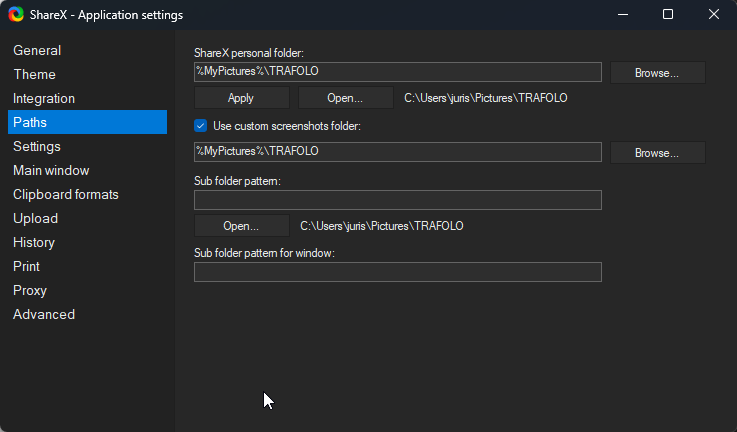
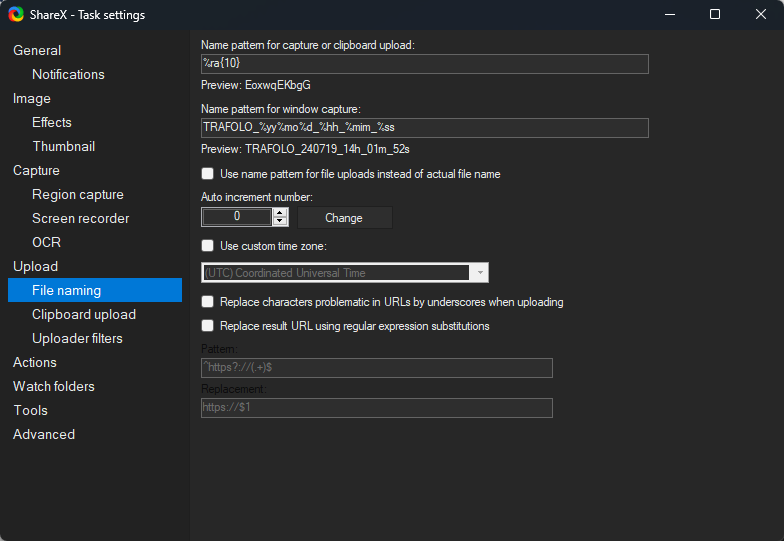
Removing 1 pixel border
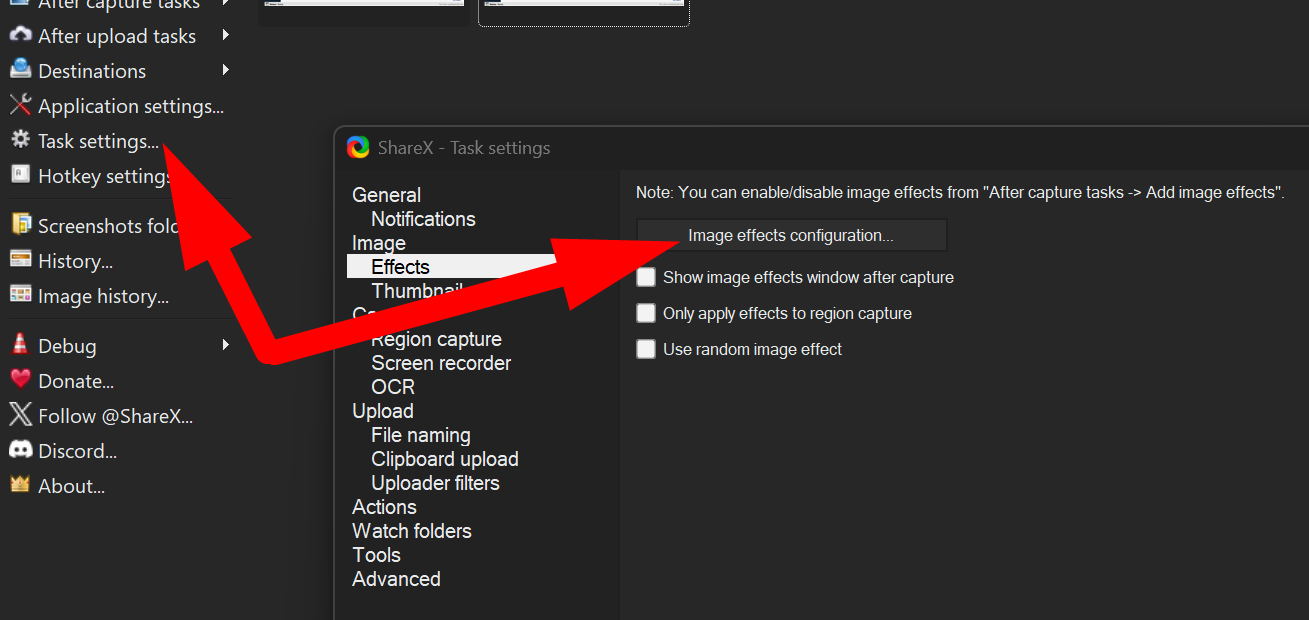
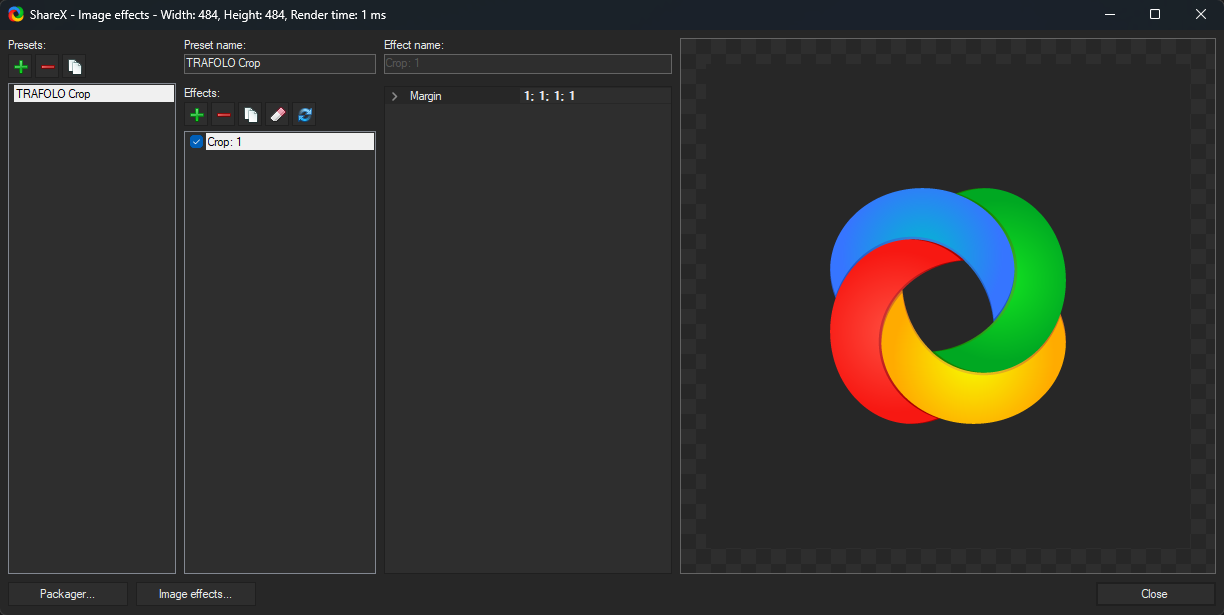
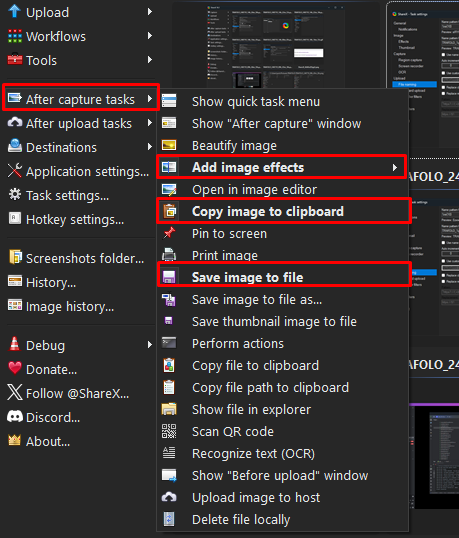
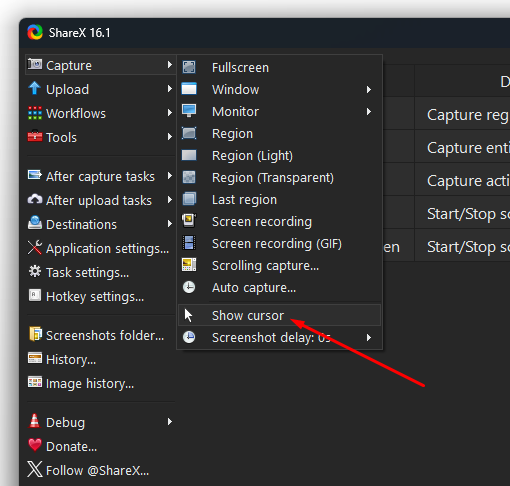
Make sure cursor is disabled
Modifying pictures
Drag-drop picture you want to modify to ShareX

Or modify existing one
Right-click → Edit image